How I enabled native dictation on macOS and tested Perplexity
After years of ignoring the Dictation feature on macOS, I finally enabled it. macOS Sequoia makes the setup easy. I hit a little snag because I use a Microsoft Sculpt Ergonomic keyboard, which doesn’t have a standard Fn key, so I switched the Dictation shortcut to “Press Control key twice.” It worked immediately.
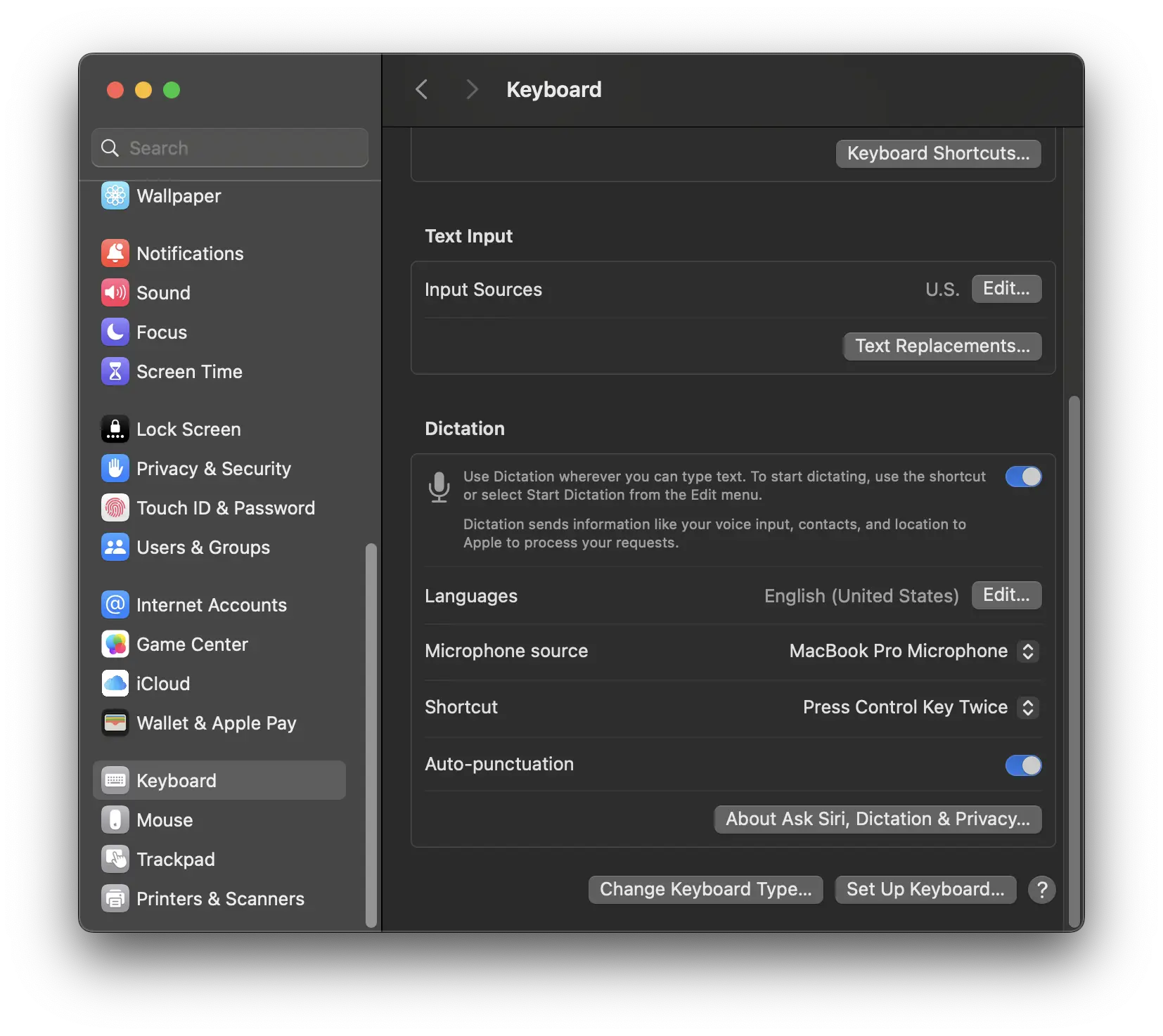
I tested it in Notes, a few web forms, and Perplexity.ai. The voice recognition was solid and supported punctuation commands like “comma” and “new line.” No extra software needed.
To push it further, I dictated a prompt into Perplexity: how do I enable talk-to-text on macOS using a Microsoft keyboard? The answer was thorough, practical, and well sourced. Even better, I could export the whole conversation as PDF (doh! I deleted the PDF), Markdown (doh! I deleted the .md file), or just share this public link.
Perplexity also surfaced a “Pro Tip” for how to cite AI in your writing:
“Some insights provided with help from Perplexity AI, July 2025.”
Or:
Sourced from AI chat with Perplexity AI on macOS Dictation and Microsoft keyboard functionality (July 2025).

This kind of built-in transparency, sources, export options, attribution guidance, should be the default. It aligns with how I’ve been thinking about disclosure and authorship when AI is involved. Tools that make that easy earn trust.